 SAPIUS
Sapius and Operion Manual
From the job folder to the compiled block, and from the package to the shop-floor screen. What you need to get going on your own.
Version 2.37. A guide to the engineering workstation, PLC connections and Operion.
1. What Sapius and Operion are
Sapius is the PLC programmer's virtual colleague: it reads project sources, plans the work, uses engineering tools, corrects errors and keeps results and evidence. Decisions stay with the project. You can ask for reasoned suggestions, such as how to organise a block's parameters.
The workstation brings together TIA Portal and tools for other PLC and HMI environments. Each integration provides specific operations, listed in chapter 7. PLC brand, engineering environment and communication protocol are separate choices.
Operion runs the supervision package on the shop floor: synoptic, tags, commands and log. Local supervision works without Sapius, TIA, AI or Internet. Sapius is a subscription; Operion has a perpetual licence per workstation. PLC code belongs in the manufacturer's project.
Engineering changes are prepared on copies. Tutto (All) already grants consent for supported imports into the TIA working copy. Transferring the result to a physical PLC is a separate step managed by the programmer.
2. Installation
Requirements
Sapius requires 64-bit Windows 10 (1809 or later) or Windows 11 and WebView2. The agent engine is included. You need a business account at sapiusportal.it and an AI connection: a supported account, your compatible API or Sapius AI. For TIA: V16–V20 with Openness, .NET Framework 4.8 and Windows membership of Siemens TIA Openness. Other environments need their own software and licences.
Install Sapius
Download the installer from Downloads in your account. It installs to C:\Program Files\Sapius; you can add sapius to PATH. Projects and settings are in %LOCALAPPDATA%\SapiusV2 and remain after uninstalling.
Sapius_Setup_<version>.exe /VERYSILENT /SUPPRESSMSGBOXES /NORESTARTAccount and ChatGPT
Sign in with your Sapius account, if you choose your own ChatGPT account, select Collega ChatGPT (Connect ChatGPT) and complete the OpenAI sign-in in the browser. These are separate accounts. Use Logout to change Sapius account; disconnect and reconnect ChatGPT from the account panel to change the AI account. Projects remain on the PC.
Updates and knowledge
When an update is available, choose Aggiorna ora (Update now). The download is checked against the published hash before the installer starts; you can postpone it. On first launch, choose whether to contribute general technical knowledge. This is optional and can be changed in settings (chapter 5).
Install Operion
Download the Operion installer for the shop-floor PC or the Linux x64 or 64-bit Raspberry Pi package. On Windows, data is stored in %LOCALAPPDATA%\OperionV2. Install Operion Client on the technician's PC for remote assistance.
Operion_Setup_<version>.exe /VERYSILENT /SUPPRESSMSGBOXES /NORESTARTClose the previous runtime and keep a backup before updating. Migration from versions using the Operion folder copies the data without deleting the source. Check the result before removing old shortcuts. The migration log is %LOCALAPPDATA%\OperionV2\migrazione.jsonl.
Since version 2.24, the Windows program is named OperionV2.exe instead of Operion.exe: update shortcuts pinned to the taskbar too. With version 2.23 or earlier, use Operion --codice-macchina and place the licence in %LOCALAPPDATA%\Operion; from 2.24, use OperionV2 --codice-macchina and %LOCALAPPDATA%\OperionV2. The command shows the workstation’s actual data folder.
Sapius language
From version 2.36, choose Italian, English, Spanish, German or French using the language button at the top or Settings → Language. The choice is available before sign-in and stays saved on this PC after updates and restarts. Switching language preserves drafts, attachments and ongoing work. In new conversations, the assistant uses your chosen language unless you request another. PLC code, tag names, documents and original technical messages are not rewritten.
Icons, columns and help
The toolbar uses icons with tooltips: log, manual book, language, settings and sign out. The book opens this manual in your chosen language. Drag the boundary between Projects and chat, or between chat and details, to resize the columns. Widths are saved on this PC. With the separator focused, use the arrow keys; Shift increases the step, while Home or a double-click restores the default width. Panels adapt to the available space in narrow windows.
To create a new project, use the + next to Projects (New project), enter its name, customer and revision, then confirm. When a project is open, the large button above creates a new conversation instead. You can ask Sapius how to use the application: it has a guide for the installed version and can explain the steps. Explaining an action does not mean it has been performed.
3. Trial, pricing and licences
The 7-day trial
The trial includes seven days on one project, with Officina. Create an account with your VAT details, verify your email and accept the sales terms using the emailed six-digit code, valid for 15 minutes. In Sapius choose Attiva la prova di 7 giorni (Start 7-day trial), or use /prova. During the trial, use your account or a compatible API. The included monthly AI allowance starts with a paid subscription.
One trial is available per account and PC, with the portal reachable. Expiry does not trigger a charge: your work remains available to view and export. Subscribe to continue.
Sapius
| Product / workstations | Launch through 31 March 2027 | List from 1 April 2027 |
|---|---|---|
| Sapius, monthly / workstation | 79 € | 169 € |
| Sapius, yearly / workstation | 790 € | 1.690 € |
Prices exclude VAT. The launch price is kept for 12 months from the account’s first paid activation, including workstations added by 31 March 2027; list pricing then applies. Sapius tools, Officina and updates during the subscription are included. Manufacturer software and ChatGPT have their own licences.
Operion and Box
| Product / workstations | Launch through 31 March 2027 | List from 1 April 2027 |
|---|---|---|
| Operion, workstations 1 | 499 € | 990 € |
| Operion, workstations 3 | 999 € | 2.490 € |
| Operion, workstations 5 | 1.499 € | 3.750 € |
Operion is perpetual per workstation, without tag counting. More than five workstations: request a quote. Updates are included for 24 months at launch pricing or 12 months at list pricing; the installed version continues working afterwards. Optional maintenance by quotation: €198 per year per workstation. Prices exclude VAT.
Operion touch: perpetual licence for a panel up to 10 inches, one PLC and 1,000 tags; €29 at launch, €59 from 1 April 2027. Included with JIT panels.
Remote assistance Box: €49 a year per Box, excluding VAT, with automatic renewal and notice 30 days ahead. The Raspberry Pi is purchased separately. The Box licence covers remote assistance, not an Operion project. Available packages are listed under Downloads. Cancel from your account.
Operion Client: included for the technician’s Windows PC. Use the administrator’s code or a paired workstation to reach authorised destinations over an encrypted connection. Operion also runs on Linux x64 and 64-bit Raspberry Pi.
Purchases and renewals
Open Acquisti (Purchases) in your account, select the licence and complete checkout on Stripe. The summary shows the amount and VAT based on your billing details. The licence becomes available after payment confirmation. Licences, Subscriptions and Invoices provide your account documents and controls.
Sapius renews monthly or annually. Cancel from your account and retain access until the paid period ends. Annual renewals are notified 30 days ahead. Update payment details through payment management. Electronic invoicing and submission to the Italian SDI are handled separately by the seller; a portal document is not an SDI receipt.
AI and workstation licence
Choose your AI connection freely. Your own account or API does not consume the Sapius balance and remains subject to provider limits. Sapius AI uses your included allowance and optional top-ups; a valid Sapius licence is still required.
The account panel and /licenza show the 24-character machine code and its source. On Windows it comes from the motherboard or, when its serial is unavailable, the Windows installation identifier. On Linux it may come from the Raspberry serial, motherboard or /etc/machine-id. The source identifier stays on the device. If the code uses the operating-system identifier, reinstalling may change it: cancel the old activation and activate the new code. A cloned image can retain the same identifier; prepare separate identities before activating different workstations. Contact support if no code is shown.
Activate the machine under Licences and download the .licenza file. Load it into Sapius or place it in Operion's data folder. Operion displays its code with OperionV2 --codice-macchina.
You may transfer a workstation up to three times in 12 months; downloading the same licence again is not a transfer. Without a valid licence Sapius retains your data but cannot start the agent; Operion runs for ten minutes per launch.
AI, balance and budget
Each paid workstation includes €10 of AI balance per month, also with an annual subscription. Unused monthly allowance expires at the end of the period shown in the portal; it does not roll over, and annual plans do not receive €120 in advance. Purchased balance remains separate and does not expire at month end. All available Sapius integrations are included; manufacturer software and licences remain separate.
- Open Impostazioni → AI e consumo (Settings → AI and usage).
- Choose a supported ChatGPT account, your API or Sapius AI. Preferences apply to new conversations; existing conversations keep their original connection.
- For Sapius AI, select an available model and the maximum work budget in euros. For your API, enter a model, a compatible Responses endpoint and the name of the environment variable containing the key, never the secret. Local endpoints without authentication may omit the variable.
- Open AI and balance in the portal for availability, included and purchased balance, reservations, transactions and rates.
Optional top-ups are €20, €50 or €100 plus VAT, without automatic renewal. Stripe shows the total before payment. Model cost is converted to euros at the published exchange rate and marked up by 50%; rates distinguish input, cache and output. Billing uses measured usage: a reservation is not a final charge.
When balance or budget runs out, work pauses and keeps its results. There are no automatic top-ups or model/payment changes. Save a new preference and start a new conversation to use another mode.
Your own account and API send required content to your provider. Sapius AI routes it through the Sapius gateway to the provider in the catalogue. This is separate from optional shared knowledge and does not authorise publication of project data. Read the privacy notice and terms. Top-ups are suspended when the gateway or rate catalogue is unavailable.
To change the limit of an existing Sapius AI conversation, press the budget button next to effort when work is paused or finished. The new limit includes usage already incurred and does not purchase balance.
4. Your first project
Create the project
Choose Nuovo progetto (New project), enter name, customer and revision, then open a conversation. Record the task and constraints. Choose the matching engineering profile: Siemens, Rockwell, Schneider Machine Expert or Control Expert, CODESYS or Beckhoff.
Choose a folder
Open the three-dot menu beside the project title, then the project folder setting. The workstation folder picker lets you browse instead of typing a path. Confirm the revision; Update imports changed files. Imported files are copied into Sapius with their source and revision.
You can also import individual sources: text PDFs, Word .docx, Excel .xlsx/.xlsm, Markdown, CSV, XML, JSON, text and PLC sources. Scanned documents need extractable text or OCR; selecting a folder does not make every format readable.
PLC / Communication
Open PLC / Comunicazione in the project panel. Select brand/environment, family or model, and protocol. The second step asks for relevant parameters: S7 uses host, port, rack and slot; Modbus TCP uses Unit ID, address base and word order; OPC UA uses URL and security; EtherNet/IP uses CIP family and path. Confirm saves the configuration across restarts. Cancel leaves it unchanged.
The engineering project connection and PLC communication have separate status. Changing brand does not automatically change protocol.
Test communication
Choose Test for an explicit check. S7 checks protocol negotiation without reading tags. Modbus TCP, OPC UA and EtherNet/IP require a test address or tag and data type. The test does not write values, command the CPU or save configuration; use Confirm afterwards to save it.
OPC UA keeps certificate checks enabled; the graphical form configures anonymous access. A successful test proves that communication at that time, not that the PLC program works correctly.
5. Working with the agent
Conversations and panels
Describe the result, attach sources with + and let the agent read, edit and verify. Choose work intensity in the top bar; the model follows the service configuration. The log shows activity. Chiudi (Close) or Esc closes panels. Logout lets you change account.
Enter sends the message; Shift+Enter inserts a new line. Ctrl+Enter also sends. While the agent is working, new messages follow the queue behaviour below; Stop is the separate command for stopping the turn.
Attach with +, drag a file into the composer or paste a screenshot. Each attachment can be up to 25 MB. Wait for upload completion before sending; remove an attachment from the next message with the cross on its card.
Click an attachment or artifact to open its preview: images and PDFs appear in the panel; text and source files, including Markdown, appear as plain text. Other formats remain in the project folder. Widen the panel, drag its edge or close it. On narrow windows it opens over the chat and can also be closed with Esc.
Open the i information button and Aspetto (Appearance) to choose the theme: light, dark or Windows setting, remembered on this workstation. The ··· menu beside the project title opens project options, folder and PLC communication.
Queue and Redirect
You can send messages while the agent is working: they stay in the conversation queue and run in order. Reindirizza (Redirect) sends a clarification to the current turn without restarting it. Use it to correct an assumption or add a constraint; it does not change industrial permissions.
Stop, errors and restarts keep the queue paused. Review it before resuming. A send with an uncertain outcome is not retried automatically.
Results and project memory
Artifacts, sourced facts, decisions and open questions remain in the project. Proposed source, implemented code, a compiled program, simulation and field verification are distinct states. Ask for compiler results and performed tests, as well as the file.
The agent can propose parameter DB organisation, block calls, diagnostics and tests appropriate to the context. Choices already made by the programmer remain the reference.
Shared knowledge
On first launch or in settings you can opt into automatic sharing of structured general technical lessons. With consent enabled, Sapius submits these for owner review before publication. Chats, documents, source code and project data are excluded.
Free-text drafts still require individual confirmation. Revoke consent in settings to stop subsequent automatic submissions. Personal preferences, project facts and shared lessons remain separate memories.
After a correction, Sapius can link the error, change and successful check, recording the symptom, proposed cause, solution and applicability conditions. Detailed lessons admitted by the technical checks can be submitted with existing consent; other records remain available within the project. Search also recognises Italian and English technical synonyms. Reuse feedback helps assess lessons without replacing review.
6. Approvals, Tutto and Officina
Service-enforced consent
The service checks permission at tool execution. Documents and model replies cannot grant it. Analysis, file writes, offline engineering, project imports and runtime reads are separate operations, with parameters, result and provenance retained.
Choose a mode
- Manuale: asks for operations beyond analysis.
- Modifiche ai file: allows working files, offline engineering and local commands; asks for subsequent classes.
- Auto: also covers runtime reads eligible for approval on the declared destination.
- Tutto: covers supported TIA imports on the working copy, including FB, FC, new DBs, UDTs and Main, without a click for each block. The service records your existing consent for each attempt and content.
- Officina: consent for one FB or FC covers corrections to that block for eight hours in the same copy and CPU; other blocks and operations follow their own approval.
Copies, checks and resuming
Tutto does not permit writes to the original or downloads and operations on physical PLCs. Copy checks, archives, protection and uncertain-outcome handling remain. Replacing existing DBs uses a dedicated analysis, isolated-copy, compile and verification path; it is not a general data migration.
When consent is requested, check destination and parameters. Refusal is recorded. Resuming does not repeat operations with uncertain outcomes. Local commands can use PC files and resources: choose a mode matching the work you authorise.
7. TIA Portal and other environments
Prepare and connect TIA
Set the TIA version and working-copy folder. The agent can prepare a copy through archiving and reopening, then identify session and path before connecting. Use the project's version to avoid unintended conversion. Accept the Openness consent dialog in Siemens software when it appears. Trust depends on executable identity and may be requested again after changes or updates.
Program and hardware
Sapius explores CPUs, blocks, tag tables and hardware configuration, consults the Openness API and works on the copy. It can prepare and import supported SCL and SimaticML, organise FB/FC, DB and UDT, call the work from Main, compile, read errors, correct and save. Before adding a module it checks the catalogue, compatibility and existing configuration.
In Tutto, the cycle continues using consent already granted for the copy. For existing DBs, Sapius analyses effects and tests replacement on an isolated copy, retaining evidence before adoption. Protected blocks and safety checks retain their safeguards.
WinCC and PLCSIM
Classic WinCC tools work on screens and tag tables in supported copies. This does not imply WinCC Unified support. PLCSIM enables local testing on an identified, separate bench: its instance and synthetic project belong to the test, not the user's existing session. Compilation, simulation and plant verification are distinct results.
Other PLCs and HMIs
| Environment | Available operations and prerequisites |
|---|---|
| Rockwell / Studio 5000 | Structured L5X export reading, inventory and ST routine editing on copies with content checks. Compilation needs Studio 5000 and its installed environment; editing a file is not compilation evidence. |
| CODESYS / Schneider Machine Expert | Visualization XML generation from a specification, a nine-component catalogue, export reading and new-screen import into a copy using ScriptEngine. The engineering bridge needs a compatible IDE and licences. Machine Expert and Control Expert are separate environments; this path does not cover Control Expert. |
| Schneider Control Expert | Generates and validates ST sections (.XST) and new variables (.XSY), using a project export as a template when available. Import variables first, then the section in Control Expert; analyse and compile in the IDE and return errors to Sapius for correction. This path prepares exchange files rather than controlling the IDE; manufacturer compilation remains to be verified. |
| Beckhoff TwinCAT | PLC project and object reading, ST editing by identity and hash, archiving and compiling a self-contained solution snapshot in a separate XAE instance. Requires 64-bit XAE Shell; it does not attach to the user’s session or activate a configuration. |
| Weintek EasyBuilder Pro | Tag CSV and typed GetData/SetData macro source generation from a specification. Import and verify the result in EasyBuilder Pro; this is not complete native panel-project generation. |
| FactoryTalk Optix | C# NetLogic and YAML node generation for panels, variables and widgets, including in a project copy. Call Build explicitly in the IDE; it does not run at runtime startup. Compilation needs FactoryTalk Optix. |
File integrations have automated format and copy-control checks. CODESYS, Machine Expert, TwinCAT, EasyBuilder Pro and Optix still require qualification in the manufacturer’s IDE on the intended bench. A generated file is not labelled compiled or simulated without that evidence.
Finish the work
Ask for files, compiler results, tests and unresolved points. A generated artifact remains proposed until the appropriate verification. Compilers require the manufacturer's software and licences on the workstation. The programmer decides how to transfer the work to the final project and physical PLC.
8. The synoptic
Starting with Base SCADA
Ask the agent to create a project from Base SCADA. It includes a home page, menus, alarms, recipes and trends. Customize colours, logo, pages and roles, then connect your project tags.
The base uses a local virtual PLC and demonstration values. Configure the actual devices, addresses and command contracts before using it on your plant. Operion asks you to review and confirm recipe values and records the outcome in the journal.
The synoptic — the graphical HMI page of the plant — is drawn in the editor, with the mouse, or you ask the agent for it: both work on the same page, so there are never two versions of the same page.
The six symbols
| Symbol | Connections |
|---|---|
| ON/OFF motor | status (feedback), command, fault |
| Valve | open, closed, command |
| Analogue measurement | value |
| Sequence | step |
| Status lamp | status — lit means active |
| Alarm lamp | alarm — lit means fault |
The five states
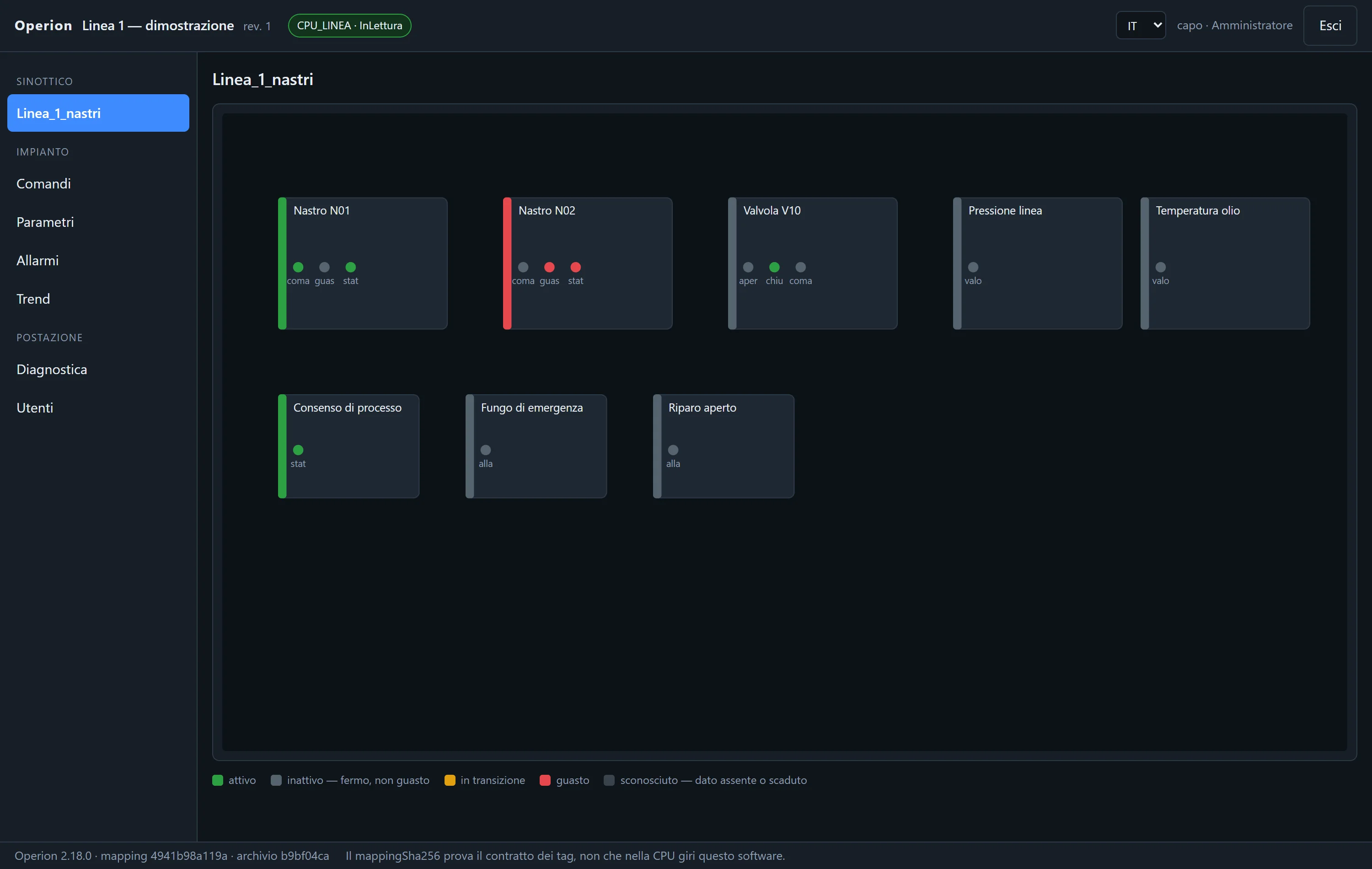
- active — the feedback says it is running.
- inactive — stopped, and not faulted.
- in transition — commanded and not yet confirmed, or vice versa.
- fault — overrides everything, even if the machine is running.
- unknown — no data, or the read failed.
Operion evaluates sample quality and age against the freshness configured in the project. Missing, faulty or stale data makes the state unknown; it cannot supply valid feedback. A CPU in STOP may still answer reads: a readable value does not prove that the control program is running. Check CPU status separately during commissioning.
Two rules worth knowing: a click is not feedback — without the feedback signal the state stays unknown even if the command was given; and a fault input that is connected but silent gives unknown, not green.
The job languages
Synoptic labels can be written today in Italian, English and Polish; the operator picks the language from the top bar of the player. The missing-texts tool lists what isn’t translated yet, so you don’t find out on the shop floor. Need another language? Tell us.
9. Commands and PLC handshake
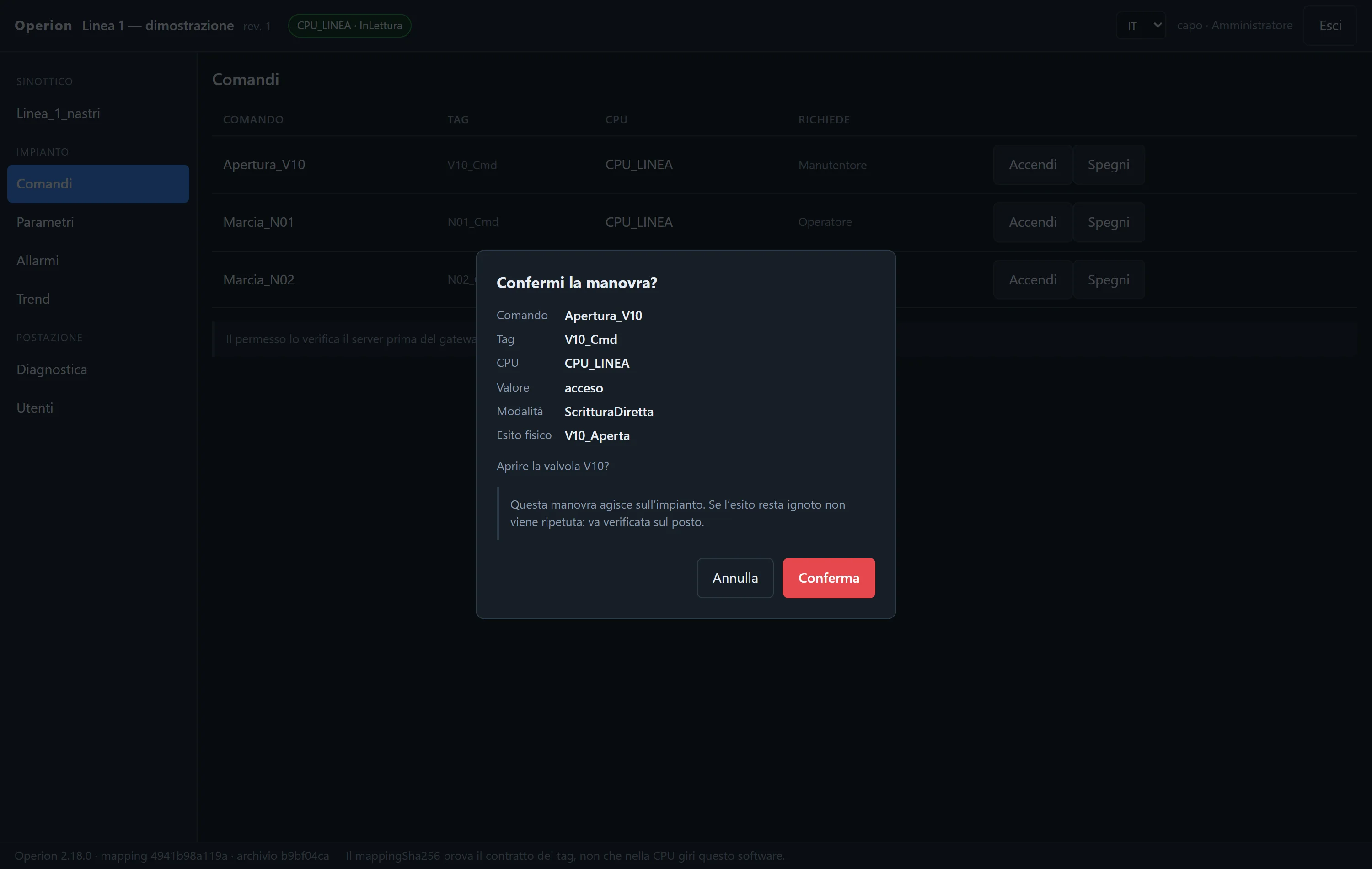
Every command declares its handshake, that is how it reaches the machine. That determines what Operion can tell you when the command is complete.
| Handshake | How it works | What an identical read-back proves |
|---|---|---|
| Level | The bit stays written | That the command is where it should be |
| Pulse | The PLC consumes it and resets it | That nobody picked it up |
| Mailbox | Argument + request number, trigger, the PLC sends back the same number | Nothing: what counts is the number sent back |
How far the command got
At the end of a command, Operion reports four separate things:
- Write — the driver accepted the telegram.
- Acknowledged — the machine confirmed it has taken it.
- Pulse — the PLC consumed it.
- Physical outcome — the feedback signal says the thing is happening.
If a command is left with an unknown outcome, Operion does not repeat it: it has to be checked on site. Repeating a command whose outcome you don’t know is the quickest way to give it twice.
Time allowed for feedback
When a command declares a physical outcome, it also declares how long to wait for it: at least three CPU read periods.
Who can send commands
Every command declares the minimum role: viewer, operator, maintainer, administrator. The permission is checked by the runtime before it writes to the CPU, not by the button on the page.
10. The package
The package is what you hand over to the shop floor: a .zip file with the
synoptic, the tags, the commands with their handshake, the alarms, the parameters and the
texts. It contains no PLC blocks: those go into the TIA project. Inside there’s a list with
the SHA-256 hash of every file, and the same project always produces the same
package.
Before writing the zip, Sapius re-checks everything: if a feedback tag was deleted or made read-only after the command was declared, the build stops and tells you which command and why. Operion runs the same check when it opens the package.
The package carries the job revision — yours, the one on the title page — and the minimum Operion version needed to open it.
11. Operion on the shop floor
First start
- Put the licence in the data folder (chapter 3). Without it, Operion runs for 10 minutes and shuts down.
- Open the package:
OperionV2 --progetto linea-1.zip, or drag it onto the icon. - Create the administrator: name and a password of at least twelve characters. There is no default password, and the password can’t be recovered.
- Add the users with their roles.
The player opens in that PC’s browser, on 127.0.0.1: it can’t be opened
from another computer or from a tablet. Two workstations are two PCs, each with its own
Operion, and neither is “the main one” that stops the others when it is switched off.
The player is in Italian today; the synoptic labels are in the job languages (chapter 8).
The tabs
- Sinottico (synoptic) — the job’s pages, with the state legend.
- Comandi (commands) — the list of commands, with tag, CPU and required role.
- Parametri (parameters) — the writable values declared in the project.
- Allarmi (alarms) — active and awaiting acknowledgement; acknowledging is logged and resets nothing.
- Trend — how the numeric values have moved over the last few minutes.
- Diagnostica (diagnostics) — CPU status, read cycles, telegrams, errors.
- Utenti (users) — administrator only.
Command line
| Command | What it does |
|---|---|
OperionV2 --progetto <file.zip> | Opens that package |
OperionV2 | Reopens the last one that opened correctly, if the workstation remembers it |
OperionV2 --ultimo-buono | Reopens the copy of the last package that opened correctly |
OperionV2 --apri | Opens the player in the browser; starts the runtime if it isn’t running |
OperionV2 --indirizzo | Tells you where this workstation’s runtime is listening |
OperionV2 --codice-macchina | The code to activate on the website and the folder to put the licence in |
OperionV2 --imposta-postazione | Remember the last project, start with Windows, port |
OperionV2 --mostra-postazione | What is configured right now |
OperionV2 --togli-avvio-con-windows | Removes the automatic start |
OperionV2 --aiuto | The full list |
Start with Windows
OperionV2 --imposta-postazione --ricorda si --avvio-con-windows siThis registers a scheduled task that reopens the last project when the user logs on. It applies to the user who runs the command: register it from the account the operator will use, not from yours.
Operion is not a Windows service: it starts when the user logs on. After a power cut, on an account with a password, it doesn’t restart until someone logs on to the PC.
Going back
Every package that opens correctly is copied aside: the last three revisions per
project. If a new delivery turns out to be wrong, OperionV2 --ultimo-buono
reopens the previous one. You decide: Operion doesn’t roll back on its own.
Operion stores alarm history on disk. Value series are archived for the tags, intervals and retention periods configured in the project. The recent in-memory trend is separate from persistent history. The command journal remains on disk. Plant calibrations stay in the CPU; the history archive does not replace a backup of the program and its data.
Readable types depend on the device protocol. S7 supports Bool, Byte, Int, Word, DInt, DWord and Real. Modbus TCP also includes 64-bit types; OPC UA and EtherNet/IP include LReal and String within the driver's format and limits. Before delivery check types, addresses and tag quality for the chosen protocol, then verify readings and feedback during commissioning.
12. The terminal
Start sapius; sapius --aiuto lists options. The terminal shares projects, sources and workbench controls. Its agent uses an API provider configured with your own key; it does not reuse the window's ChatGPT sign-in. Supply secrets through OPENAI_API_KEY or ANTHROPIC_API_KEY.
/progetti, /nuovo, /conversazioni, /nuova, /fonti and /importa manage work. /costruttore selects the engineering profile. /plc shows communication; /plc configura file.json saves it, /plc test file.json [indirizzo tipo] performs an explicit test, and /plc rimuovi removes it. /cpu remains S7-compatible.
/accedi esci signs out. /licenza, /prova, /aggiornamenti, /registro, /riprendi and /aiuto provide the other main commands. End of input or closing the terminal is not confirmation of a requested approval.
13. If something goes wrong
Sign-in, quota and updates
Check which Sapius and ChatGPT accounts are connected. If OpenAI quota is exhausted, consult your OpenAI account or disconnect and sign into another account. Activate missing licences from the Sapius account. For an update that is not shown, check connectivity and run the update check; these are separate issues.
PLC or TIA connection
Check brand, protocol, destination and parameters. For S7 check rack/slot and access settings; PUT/GET and standard DBs apply to S7 reads, not offline TIA connections. For other protocols check test address, type and security settings. For TIA check version, Openness group and pending dialogs.
Resume work
Close panels with Close or Esc. After Stop or an error reopen the conversation and review the queue before resuming. For uncertain outcomes consult the log and destination instead of blindly repeating an operation. In Operion, a grey symbol calls for checking sample quality and time; a sent command is not physical feedback.
14. Glossary
Project: sources, revisions and decisions for a job. Artifact: a generated, retained file. Working copy: a separate engineering destination. Protocol: device communication, not the IDE itself. Sample: a value with quality, time and provenance. Compiled: accepted by a compiler. Simulated: tested in an identified simulator. Field verified: tested on the plant with evidence. Handshake: command and acknowledgement exchange. Package: a supervision project for Operion.